Mosyle Installation
Before you begin, download the macOS Sensor installer (.pkg) and the Cyberhaven MDM configuration profile (Cyberhaven.mobileconfig) from the Cyberhaven Console.
Step 1: Deploy the Cyberhaven MDM Configuration Profile
- Log in to the Mosyle Admin Console with permissions to create profiles and deploy software.
- Go to Management > Management Profiles > Certificates/Custom Profiles.
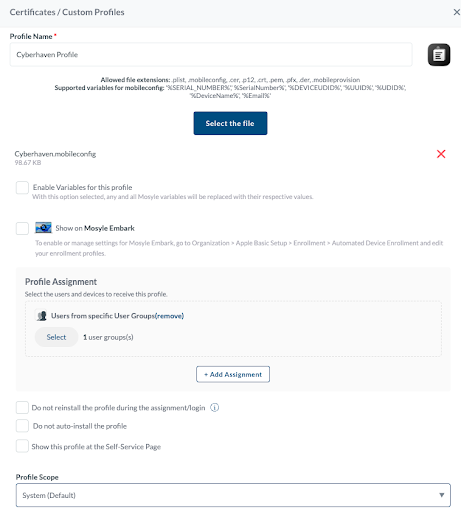
- Click Add New Profile and provide a unique profile name.
- Upload the
Cyberhaven.mobileconfigfile downloaded from the Console. - Clear the Enable Variables for this Profile checkbox.
- Select the appropriate Profile Assignment for your devices.
- Ensure the Profile Scope is set to System (Default).
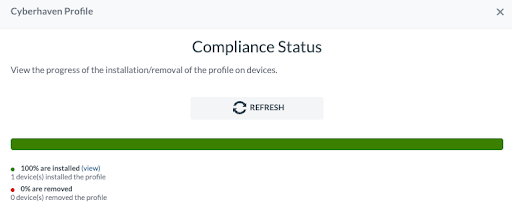
- Confirm the Compliance Status shows successful installation of the Cyberhaven profile before proceeding.
Step 2: Deploy the Cyberhaven Sensor
- Navigate to Management. Ensure macOS is selected from the Manage macOS drop-down menu.
- Go to Management Profiles > Install PKG.
- In the PKGs tab, click Add New Package.
- Select Already Have a .PKG.
- Choose the distribution method required by your Mosyle license and deployment approach. Click Next.
- Upload the Cyberhaven Sensor installer.
- Select This App is Signed and Install as Managed.
- Click Add Enterprise Package and wait for the package to become available in Mosyle.
- Click on the Profiles tab and click Add New Profile.
- Provide a unique profile name and click Add Application.
- Filter by Enterprise Apps and select the Cyberhaven PKG you uploaded.
- Select Install all apps after saving the profile.
- Under Self-Service Apps, choose Do not show the apps in Self-Service.
- Select the appropriate Profile Assignment.
- Verify the installation status is Successful.
- Confirm devices appear as enrolled in the Cyberhaven Endpoint Sensors page.
Known Issue: VPN Configuration Prompt
Some MDM solutions may prompt for a VPN hostname when uploading the Cyberhaven MDM profile (version 2.0.8 or later), due to inline proxy support for Microsoft Teams traffic inspection. If prompted, enter 127.0.0.1 as the VPN hostname to proceed with the upload.
For details about Microsoft Teams support, see Microsoft Teams Support with Windows and macOS Sensors.